> ## Documentation Index
> Fetch the complete documentation index at: https://docs.befailproof.ai/llms.txt
> Use this file to discover all available pages before exploring further.
# Events and configuration
> Reference the event model, environments, local storage, and configuration boundaries.
## Event families
* Agent start, end, pause, and resume
* Model request and response
* Tool use and result
* Hook triggered and completed
* Human wait, input, pause, and interrupt
* Explicit errors
Every event carries a timestamp, session ID, agent ID, event type, and environment. Event-specific fields contain model, tool, correlation, outcome, content, duration, or error data.
## Inspect an event contract
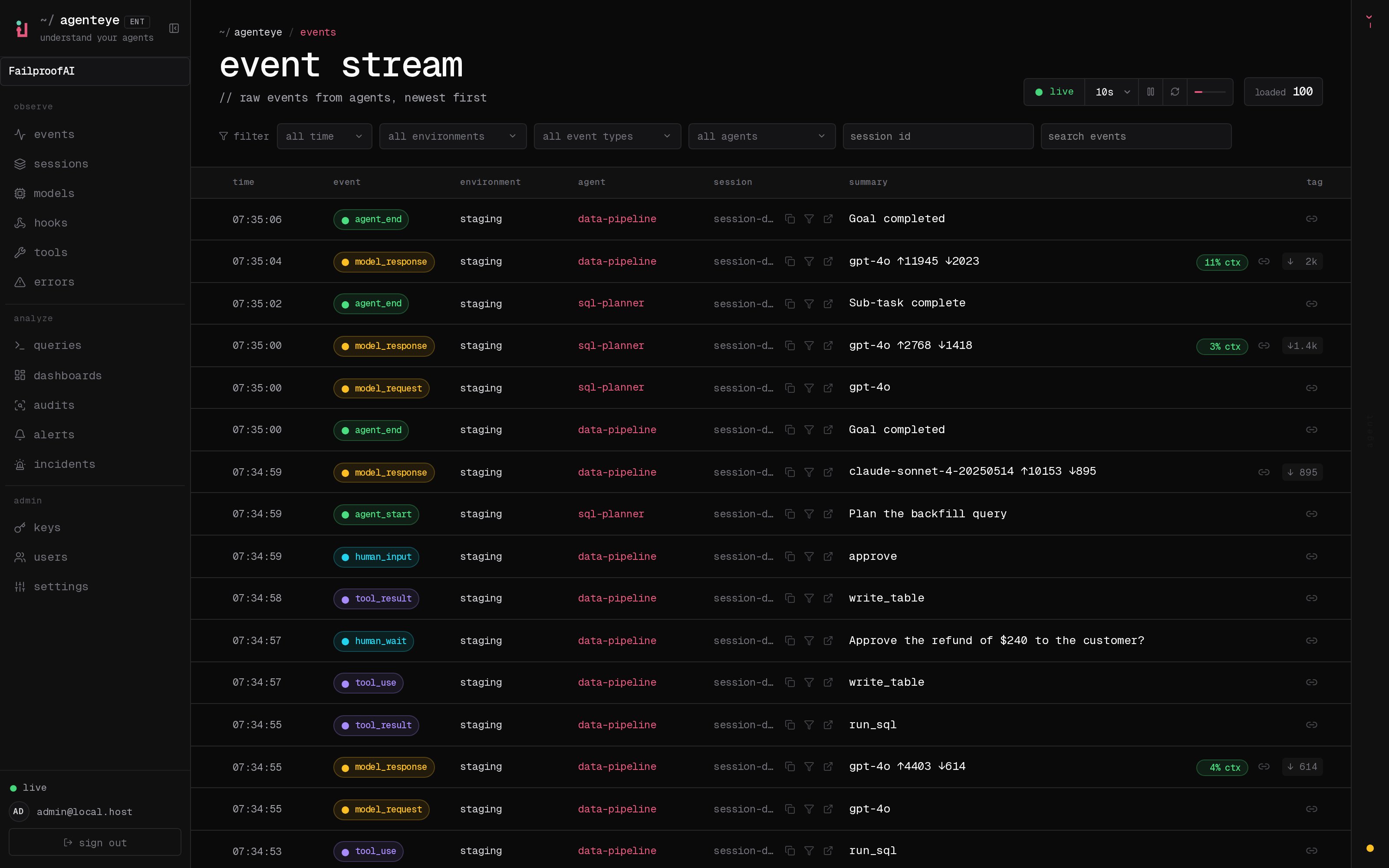
1. Open **Observe → Events**.
2. Set a short time window and filter by environment, agent, and event type.
3. Select an event to inspect its normalized fields and raw payload, then open its session to see the execution context.
4. If a paired duration is missing, verify that the start and completion events use the same correlation ID.
Use the Events stream to narrow the data to one agent run and inspect the normalized event fields.
 Then follow the event into its session. The trace shows what happened immediately before and after it, which is necessary when the payload alone is ambiguous.
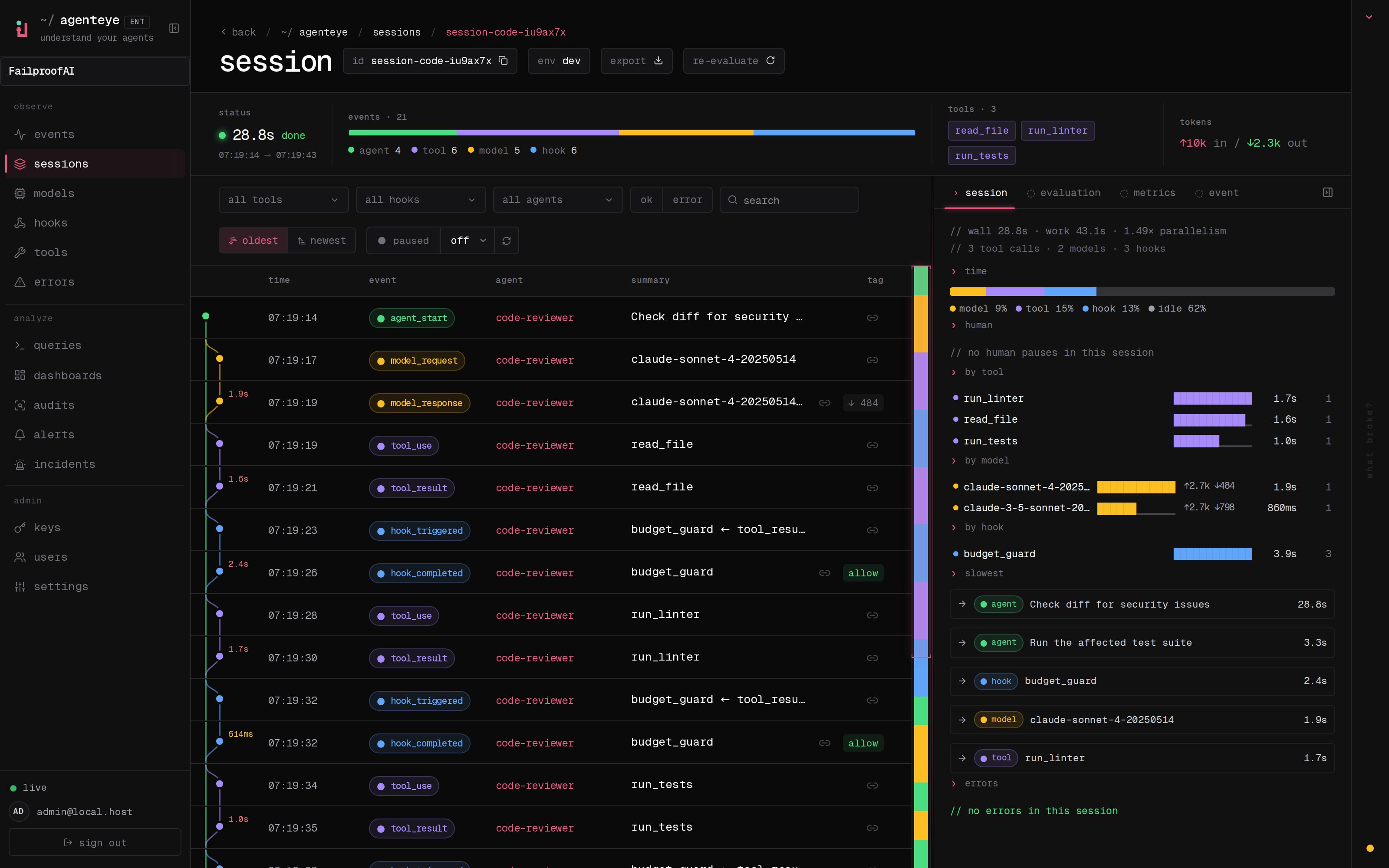 Compare correlation IDs and timestamps across both views when a paired event or duration is missing.
Discover valid filter values, then fetch full event payloads for one session:
```bash theme={null}
fp list event_types
fp list envs
fp events --since 1h \
--env production \
--event-type tool_use,tool_result \
--session-id \
--full
```
Use `fp --json events ... --fields ts,event_type,session_id,payload` for machine-readable inspection.
## Reserved SDK fields
Do not use `timestamp`, `session_id`, `agent_id`, `type`, or `environment` as custom Python SDK fields. Paired event durations such as tool result duration are calculated by the SDK and cannot be supplied manually.
## Local boundaries
* Failproof AI state lives under `~/.failproofai` unless explicitly configured otherwise.
* `failproofai-sdk` uses `AGENTEYE_HOME` for its legacy base-directory override.
* Environment labels can be set through SDK configuration or `AGENTEYE_ENVIRONMENT`.
* Daemon credentials are stored separately from non-secret settings.
Use stable, low-cardinality environment names. Commas are not supported in daemon environment labels.
## Change an environment label
Environment labels are assigned by the emitting SDK or Failproof daemon. After changing one, open **Observe → Sessions** and use the environment filter to confirm new sessions carry the new value. Existing sessions retain their original environment.
For `failproofai-sdk`, configure the environment in code or with its legacy environment variable. Rerun daemon configuration when changing machine-level settings.
```bash theme={null}
export AGENTEYE_ENVIRONMENT=production-us-east
failproofai config
failproofai config --status
fp sessions --since 1h --env production-us-east
```
Compare correlation IDs and timestamps across both views when a paired event or duration is missing.
Discover valid filter values, then fetch full event payloads for one session:
```bash theme={null}
fp list event_types
fp list envs
fp events --since 1h \
--env production \
--event-type tool_use,tool_result \
--session-id \
--full
```
Use `fp --json events ... --fields ts,event_type,session_id,payload` for machine-readable inspection.
## Reserved SDK fields
Do not use `timestamp`, `session_id`, `agent_id`, `type`, or `environment` as custom Python SDK fields. Paired event durations such as tool result duration are calculated by the SDK and cannot be supplied manually.
## Local boundaries
* Failproof AI state lives under `~/.failproofai` unless explicitly configured otherwise.
* `failproofai-sdk` uses `AGENTEYE_HOME` for its legacy base-directory override.
* Environment labels can be set through SDK configuration or `AGENTEYE_ENVIRONMENT`.
* Daemon credentials are stored separately from non-secret settings.
Use stable, low-cardinality environment names. Commas are not supported in daemon environment labels.
## Change an environment label
Environment labels are assigned by the emitting SDK or Failproof daemon. After changing one, open **Observe → Sessions** and use the environment filter to confirm new sessions carry the new value. Existing sessions retain their original environment.
For `failproofai-sdk`, configure the environment in code or with its legacy environment variable. Rerun daemon configuration when changing machine-level settings.
```bash theme={null}
export AGENTEYE_ENVIRONMENT=production-us-east
failproofai config
failproofai config --status
fp sessions --since 1h --env production-us-east
```