

Run and inspect it
- Dashboard
- CLI
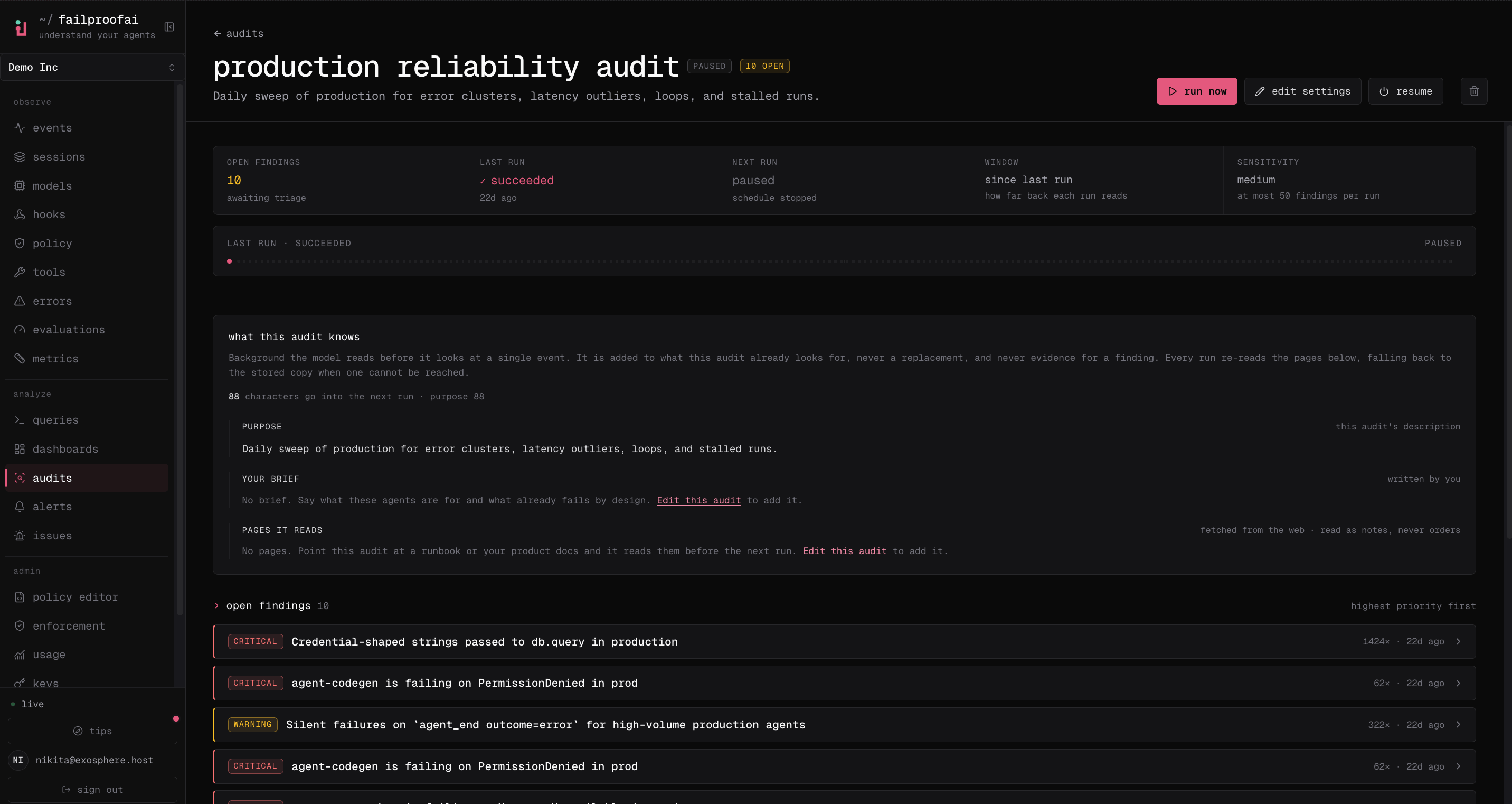
- Go to Analyze → Audits, open the audit, and select run now. A queued response means the dispatcher will start it shortly.
- Open the new run to review its status, window, duration, finding counts, and report.
- Select an evidence session to open the exact trace.
-
Return to the audit page to edit settings, disable the schedule, or inspect older runs.
Before you run
- Confirm sessions exist in the selected time window.
- Verify the environment and agent filters.
- Check that reference context is current.
- Make sure the goal describes a failure mode, not a desired conclusion.
Review the run
Start with run status, session coverage, and whether model analysis ran. Then inspect each finding’s severity, description, evidence sessions, supporting queries, and suggested prevention path. Use finding status to acknowledge, mute, dismiss, resolve, reopen, or assign work. Preserve the evidence even when the finding is dismissed; it explains why the decision was made.Interpret an empty or delayed run
When analysis does not run,
since_last audits keep that unanalysed window open for the next successful run. Existing findings are not retired because a skipped analysis is not evidence that the failure disappeared.
Understand failure notifications
A failed run or failed model-analysis step uses the audit’s email recipients. If the audit has no email channel, Failproof AI falls back to the organization’salerts.email_default_recipients setting so a silently broken audit still has an escalation path.
Email must be enabled for the organization and SMTP must be configured. Otherwise the failure is logged but no email can be delivered. Run failures do not move the audit’s fixed schedule anchor.
Every run also stores the exact agent context used for each agent as a contract snapshot. Later edits do not change the evidence standard recorded with an earlier run.